How to clean iPhone speaker requires the right tools and the right approach. The grille openings are small, the mesh is delicate, and the wrong method can push debris deeper or damage the speaker.
This guide covers what actually works, what to avoid entirely, and how to tell when a repair is needed.
1. Why Your iPhone Speaker Sounds Muffled
Before cleaning, it helps to confirm that debris is actually the cause, since moisture and software issues produce similar symptoms with different solutions.
Dust and pocket lint.
This is the most common cause. Fine particles and fabric fibers accumulate in the speaker grille and pack tightly over time, reducing volume and clarity. The muffling usually develops gradually rather than appearing suddenly.
Moisture and water exposure.
Even water-resistant iPhones can develop muffled sound after exposure to rain, sweat, or splashing. Moisture sitting in or behind the speaker grille reduces sound output, usually appearing more suddenly than debris-related muffling.
Software vs. hardware problems.
Before cleaning, test whether the muffling affects all audio, including speakerphone, ringtones, and media.
If audio sounds normal through headphones but muffled from the speaker, the issue is often physical debris or moisture, though software settings or audio routing issues can also contribute.
If audio is distorted in all modes, a software issue or internal hardware fault may be the cause rather than debris.
2. How to Clean iPhone Speaker Without Damaging It
Four tools work safely on iPhone speaker grilles. Use them in order, starting with the least invasive.
Start With a Soft-Bristled Brush
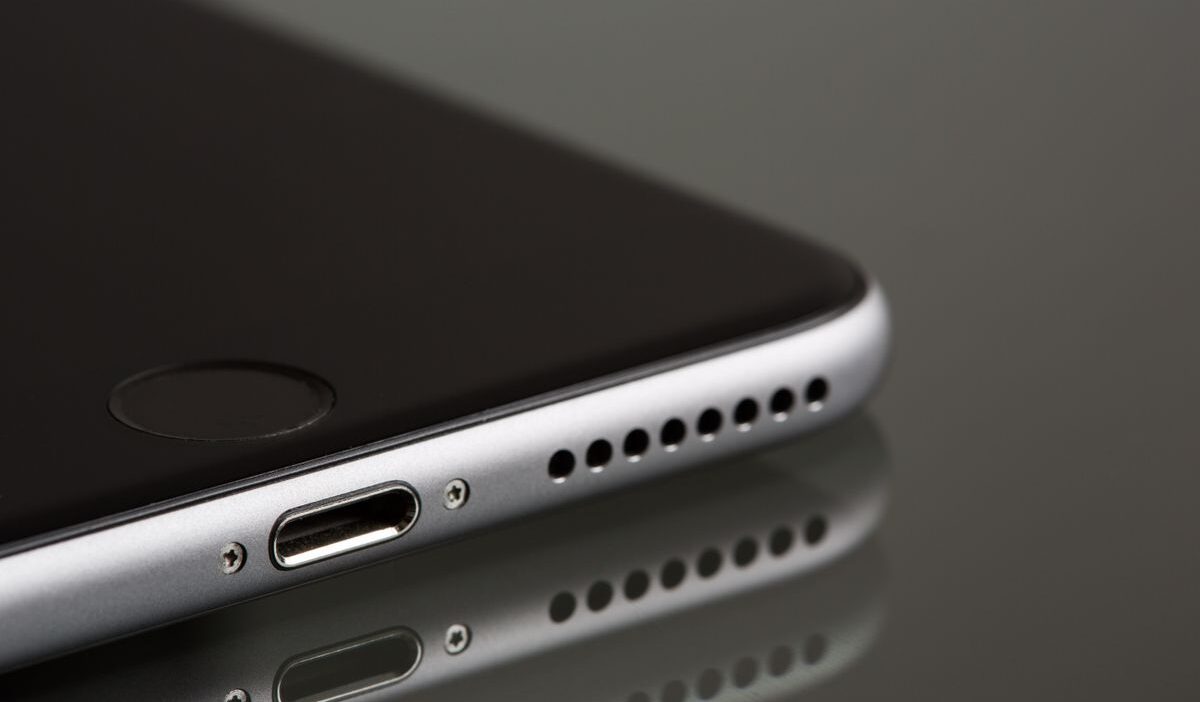
A clean, dry toothbrush with soft bristles is the best starting point. Hold the iPhone with the speaker grille facing down so that dislodged debris falls away from the device rather than deeper into it.
Brush gently across the grille in short strokes. Most loose debris comes free in this step. Do not press hard or scrub in circles, which can work particles further into the mesh.
Lift Stubborn Debris With Tape or Blu-Tack
For debris that brushing does not dislodge, press a small piece of painter’s tape or a rolled ball of Blu-Tack gently onto the speaker grille. Press and lift rather than rubbing.
The adhesive pulls debris out rather than pushing it in. Painter’s tape is preferable to duct tape or packing tape, which leaves residue. A fresh piece works better than a reused one since the adhesive weakens with each use.
Use an Air Blower for Loose Particles
A manual rubber air blower, the type used for camera lens cleaning, is safe for iPhone speakers. Squeeze it to direct a controlled burst of air across the grille at an angle.
This dislodges and moves particles outward. Keep the device speaker-side facing down during this step so particles fall out rather than shifting position inside the grille.
Carefully Remove Remaining Debris
For visible debris that remains after brushing, tape, and air, a wooden toothpick used very lightly along the edge of the grille can nudge particles out.
Do not insert the toothpick into the speaker holes. Friction against the grille edge, not insertion into it, is the intended technique. Stop if resistance is felt.
>>>Read more: How to clean iPhone charging port: Safe Fix That Works 2026
3. If Water Is Affecting the Speaker
Moisture in the speaker requires a different approach from debris. The goal is removal and evaporation, not dislodging particles.
- Let the device dry naturally. Hold the iPhone with the speaker grille facing down and leave it in a dry area with good airflow. Avoid using rice, as it is not recommended by Apple and may introduce dust or particles without improving drying compared to natural airflow. Most minor moisture exposure clears within a few hours.
- Use sound-based water ejection tools. Apps that play a specific tone frequency can vibrate water out of the speaker grille. Several free options are available on the App Store specifically for this purpose. Sound-frequency “water ejection” tools may help vibrate and loosen trapped moisture, but they are not guaranteed to fully remove water from the speaker.
- Signs moisture may still be present. Continued muffling after drying time, crackle or distortion at higher volumes, or a visual condensation behind the screen indicate moisture that has moved deeper into the device. These signs warrant professional assessment rather than further home drying attempts.
4. What NOT to Do When Cleaning Your iPhone Speaker
Several common cleaning approaches damage the speaker and should be avoided entirely.
Avoid Compressed Air Cans
Canned compressed air can push debris deeper into the speaker grille due to high pressure, which may increase the risk of internal damage. It also produces cold propellant that can condense inside the device. Manual rubber air blowers provide adequate pressure without these risks.
Avoid Liquids or Cleaning Solutions
Water, rubbing alcohol, and cleaning sprays all carry moisture directly into the speaker, compounding rather than solving a muffling problem. Apple’s official cleaning guidance recommends avoiding moisture in any openings, including the speaker, and using only a soft, lint-free cloth for exterior surfaces.
Never Use Sharp Metal Objects
Pins, needles, SIM eject tools, and similar objects can damage the speaker mesh or internal components if used, even with light pressure. Even light contact with a metal point on the mesh can puncture it.
The wooden toothpick method described above is the closest safe equivalent, and only along the grille edge rather than into it.
5. Checking Speaker Performance After Cleaning
Testing systematically after cleaning confirms whether the issue is resolved or whether something else is at play.
Test Audio Quality
Play a range of audio through the speaker: a voice call on speakerphone, music at different volume levels, and a video.
Muffled speech and reduced bass tend to return to normal when debris is cleared. Distortion or crackling that persists after cleaning points to a hardware issue beyond debris.
Compare Top and Bottom Speakers
Current iPhone models have both a bottom speaker grille and an earpiece speaker at the top.
For stereo audio, both should produce similar volume and clarity. If one is significantly different from the other after cleaning, it may need individual attention or professional assessment.
When Professional Repair May Be Necessary
If audio quality does not improve after a thorough cleaning session, or if the speaker produces distortion, crackling, or no sound at all, the issue is likely internal.
This can result from speaker membrane damage, internal moisture, or component failure. Apple Authorized Service Providers and Apple Stores can diagnose and replace speakers if needed.
>>> Read more: How to Unpair Apple Watch From iPhone (All Scenarios)
6. FAQs
How Often Should You Clean iPhone Speakers?
Every 1–3 months is usually enough for regular use, or sooner if you notice reduced sound quality.
Can You Use Rubbing Alcohol to Clean iPhone Speaker?
No. Avoid liquids like rubbing alcohol on the speaker grille, as they can cause damage; Apple only recommends alcohol wipes on exterior surfaces, not openings.
Why Does My iPhone Speaker Still Sound Muffled After Cleaning?
It may be due to trapped moisture, deeper debris, or internal damage, and if cleaning doesn’t help, a professional check is recommended.
7. Conclusion
Knowing how to clean iPhone speaker safely means using a soft-bristled brush first, followed by tape or Blu-Tack for stubborn debris, and a manual air blower for loose particles. These three steps resolve most debris-related muffling without risking damage to the grille or membrane.
Moisture requires a different approach, using natural drying and sound-based ejection tools rather than cleaning. Compressed air cans, liquids, and metal objects are the three things to avoid entirely. Persistent muffling after cleaning is a sign that a professional repair is the right next step.