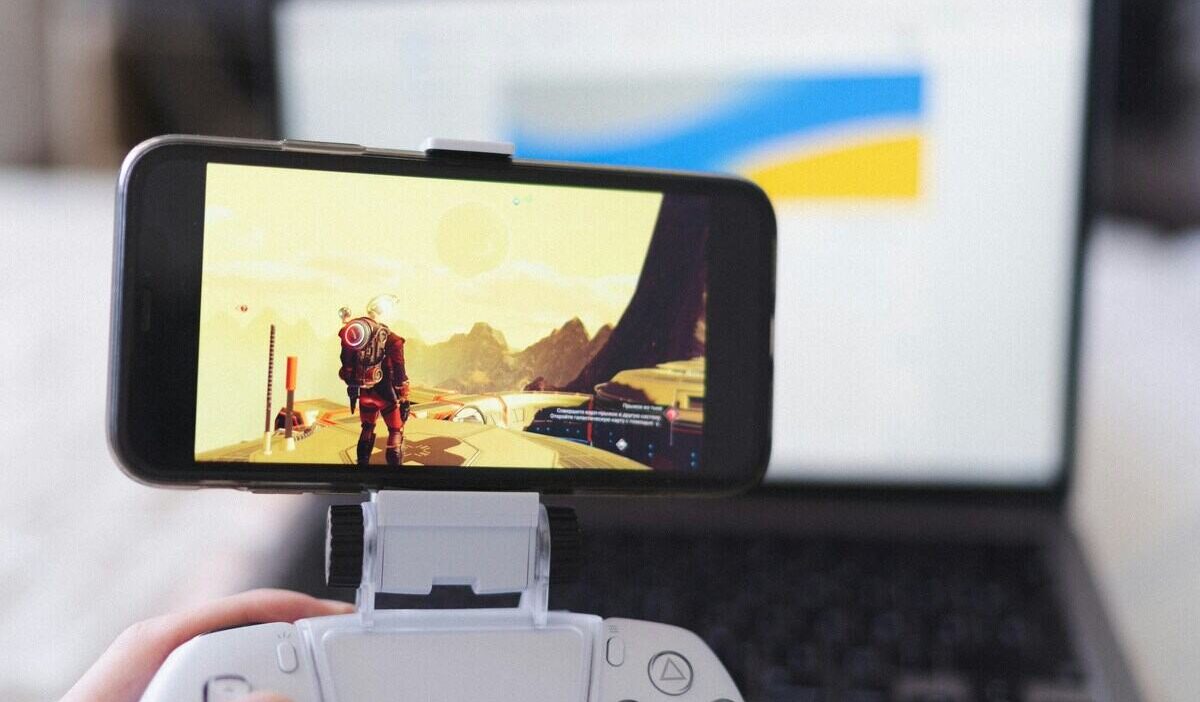
Tapping on a glass screen is not always the best way to enjoy your favorite mobile games. If you are tired of your thumbs blocking the action, grabbing a real gamepad can completely change your experience. You do not need a dedicated console to play comfortably on the go.
Figuring out how to connect PS5 controller to iPhone takes only a few seconds using the built-in Bluetooth settings. Let’s discover NOW!
1. What You Need Before Connecting
Before pairing your devices, you must prepare your phone and controller. Review this quick checklist to ensure a smooth connection:
- Update your software: Your iPhone needs to run iOS 14.5 or later to support the gamepad natively.
- Power down the controller: Ensure your DualSense pad is charged and currently turned off.
- Disconnect the console: Turn off or unplug your PS5. The controller can only connect to one device at a time.
- Enable Bluetooth: Open your iPhone settings and verify that Bluetooth is toggled on.
2. How to Connect PS5 Controller to iPhone
Pairing your DualSense gamepad to an iOS device is incredibly straightforward. The entire process relies on the standard Bluetooth menu, meaning you do not need to download any special companion apps or extra software to get started.
Step 1: Put the Controller Into Pairing Mode
First, you need to tell your gamepad to look for a new device. Make sure the controller is completely turned off before you begin.
- Locate the Create button (the small button to the top-left of the touchpad) and the PS button (the PlayStation logo in the lower center).
- Press and hold both buttons at the same time.
- Keep holding them for about three seconds until the light bar around the touchpad starts flashing rapidly. This blinking light means the controller is now in pairing mode.
Step 2: Connect Through Bluetooth Settings
Now that the gamepad is sending out a signal, you need to catch it on your phone.
- Open the gray Settings app on your iPhone.
- Tap on Bluetooth and ensure the toggle switch at the top is green.
- Scroll down and look under the “Other Devices” section.
- Tap on DualSense Wireless Controller when it pops up on the list. The flashing blue lights on the pad will turn a solid color once it successfully connects.
Step 3: Test the Controller in a Game
Your phone is now connected, but it is always a good idea to verify that the buttons work. Keep in mind that not every mobile game supports physical gamepads.
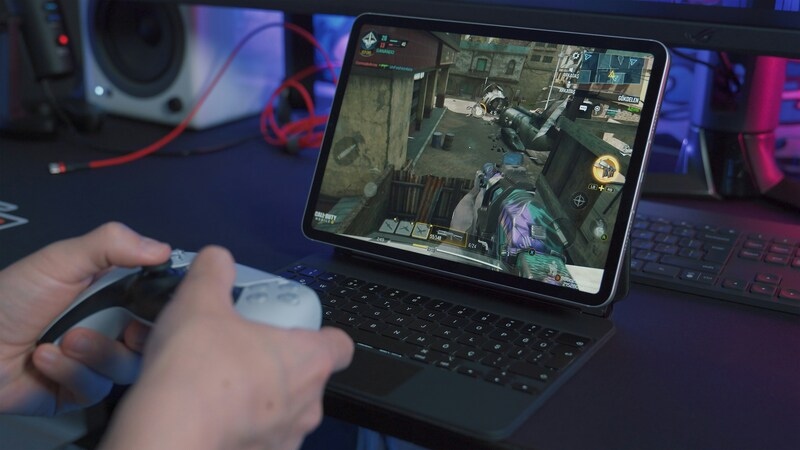
Open a game that features native controller support, such as Minecraft, Call of Duty Mobile, Genshin Impact, or almost any Apple Arcade title.
Jump into a match or load a save file to ensure your joysticks and triggers are responding smoothly to your touch.
3. How to Disconnect or Unpair Your Controller
Do not worry if you need to use your gamepad with your console again, you can always undo this process in just a few seconds.
Your controller will stay linked to your phone’s memory automatically until you explicitly tell your iPhone to “forget” the connection.
Follow these exact steps to unpair your device:
- Open the Settings app and tap on Bluetooth.
- Find the DualSense Wireless Controller in your list of paired devices.
- Tap the blue “i” (information) icon next to the controller’s name.
- Tap Forget This Device to sever the connection completely.
Once forgotten, you will need to put the controller back into pairing mode the next time you want to play on your phone.
>>> Read more: How To Connect AirPods To iPhone: A Simple Guide To Success
4. Troubleshooting: Why Won’t My PS5 Controller Connect?
It can be incredibly frustrating when you are ready to play, but your gamepad simply refuses to show up on the Bluetooth list.
Bluetooth connections can occasionally glitch, but most connection problems are easy to solve.
If you are staring at an empty list, review the common issues and quick fixes in the table below.
| Common Issue | What It Means | Quick Fix |
|---|---|---|
| No Flashing Light | The pairing buttons were not held long enough. | Press and hold the Create and PS buttons again for a full three seconds. |
| Not on the List | The iPhone’s Bluetooth scanner needs a quick reset. | Turn Bluetooth completely off and back on in your iPhone settings. |
| Low Battery | The controller does not have enough power to pair. | Plug the controller into a charger for at least 15 minutes and try again. |
5. Frequently Asked Questions (FAQs)
Can I connect multiple controllers to one iPhone?
Yes, you can connect multiple Bluetooth controllers to a single iPhone. This setup is great for local multiplayer or co-op games. However, you must ensure that the specific game you are playing actually supports multiple players on the exact same screen.
Does controller vibration work on iPhone?
Yes, controller vibration and haptic feedback do work on an iPhone. Apple added native support for these features, but it relies entirely on the game developers. The specific mobile game you are playing must be programmed to support rumble features for it to function.
Can I use the PS5 controller for any game?
You can use it for many popular mobile games that support controllers. This includes games like Minecraft or racing games. Look for a controller icon in the App Store description to be sure.
Does connecting the controller drain my iPhone battery?
It uses a small amount of battery for the Bluetooth connection. If you are playing for a long time, it is best to have your phone plugged into a charger.
6. Final Thoughts
Upgrading your mobile setup makes a massive difference in how you enjoy your games. Now that you know how to connect PS5 controller to iPhone, those clumsy touchscreen controls are a thing of the past.
Whether you are building blocky worlds or racing at top speed, your DualSense pad provides the physical feedback you need. Keep your phone charged up, grab your favorite gamepad, and enjoy your newly transformed portable console.