Are you the one who can’t wake up to the same default Apple alarm tone every morning? Actually, it may become repetitive quickly. iPhone lets you customize your alarm in just a few taps. Let’s explore how to change alarm sound on iPhone.
1. How to Change Alarm Sound on iPhone
You can easily customize your alarm with different sounds. Follow these steps:
Open the Alarm Settings
To start customizing your alarm sound, you’ll first need to open the alarm settings inside the Clock app.
- To change the alarm sound on your iPhone, open the Clock app and tap the Alarms tab at the bottom of the screen.
- If you want to edit an existing alarm, tap Edit in the upper-left corner, then select the alarm you want to change.
- You can also tap the Add (+) button to create a new alarm with a custom sound.
- You’ll then see options for time, repeat schedule, label, snooze, and sound customization.
Select and Change the Alarm Tone
Tap Sound to view the available alarm tones and alert sounds on your iPhone. You can then:
- Browse through Apple’s built-in alarm tones
- Choose a song from your music library
- Select a vibration pattern if desired
- Preview sounds by tapping them before making your selection
When you tap a tone, your iPhone automatically plays a preview so you can hear how the alarm will sound.
Save Your Changes
- After choosing your new alarm sound, tap Back to return to the alarm settings screen.
- Tap Save (or Done for new alarms) in the upper-right corner.
Your updated alarm tone will now play the next time the alarm goes off.
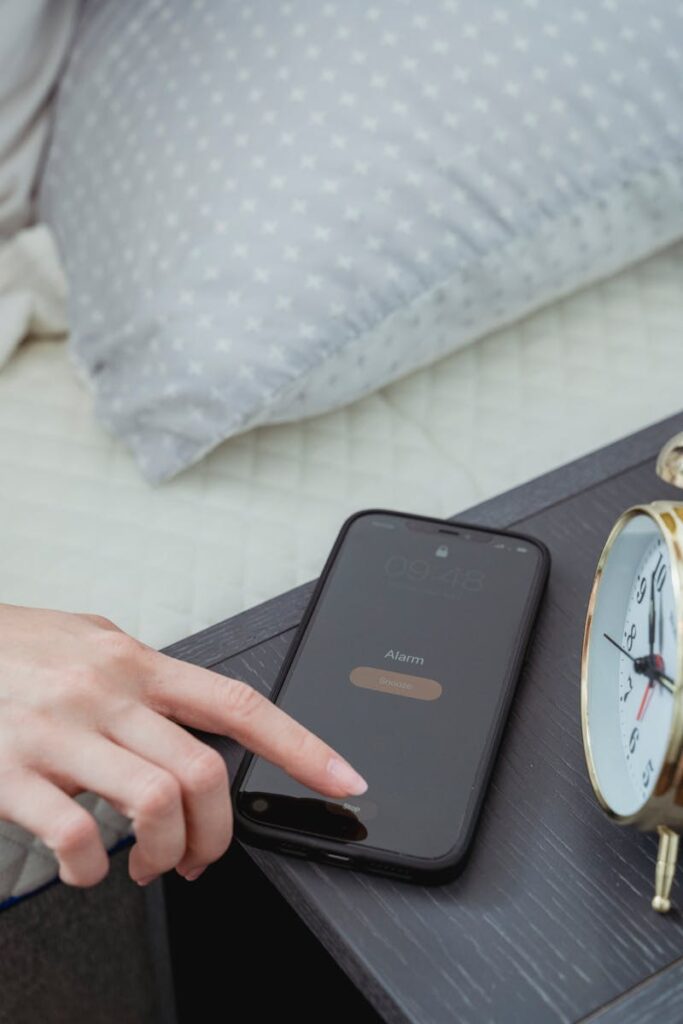
2. How to Use a Song as Your iPhone Alarm Sound
Before setting a song as your alarm sound, make sure it is downloaded to your iPhone from the Music app or your Apple Music library.
- Go to the Clock app and tap the Alarms tab at the bottom of the screen.
- Tap Edit to select an existing alarm, or tap the + button to create a new one.
- Next, tap Sound. Under the Songs section, select an available track or tap Pick a song to browse your music library.
- Tap Back, then tap Save to confirm your changes.
Spotify songs and standard ringtones cannot be selected directly in the iPhone Clock app unless they are converted into custom ringtones.
If the song is not available in your Music library, you can use apps like GarageBand to import the audio file and export it as a custom ringtone.
>>> Read more: How to Change Home Screen on iPhone
3. How to Adjust Alarm Volume on iPhone
If your iPhone alarm is too loud, too quiet, or difficult to hear, you can quickly adjust the alarm volume through the Settings app.
- Hit the Settings app on your iPhone and tap Sounds & Haptics.
- Under the Ringtone and Alerts section, drag the volume slider left or right to decrease or increase the alarm volume. As you move the slider, your iPhone plays a sample sound so you can hear the volume level before saving it.
You can also allow the side volume buttons on your iPhone to adjust alarm volume. In Sounds & Haptics, turn on Change with Buttons.
Once enabled, pressing the volume up or down buttons will change the ringtone and alarm volume together.
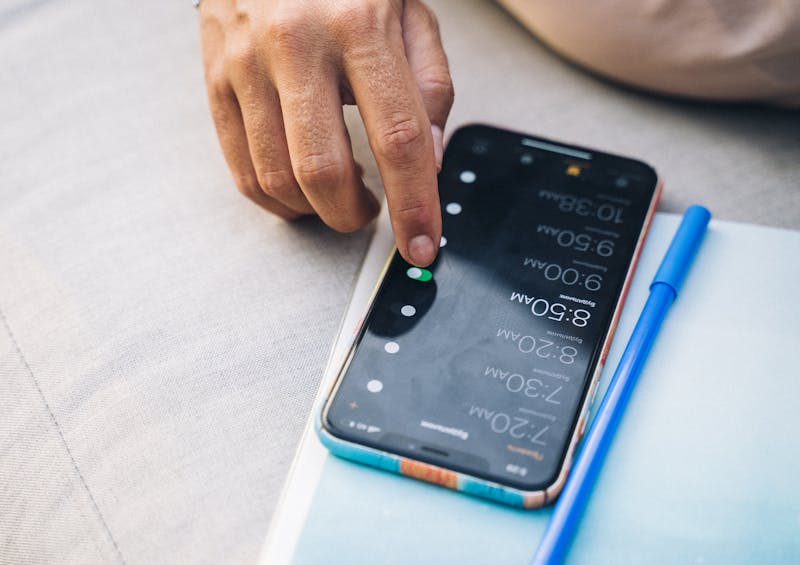
4. How to Fix if Your iPhone Alarm Has No Sound
If your iPhone alarm has no sound or only vibrates without playing a sound,
- Open the Clock app and tap the Alarms tab.
- Tap Edit, select your alarm, then tap Sound. Make sure the sound is not set to None. Choose a ringtone or alert tone to restore the alarm audio.
Keep in mind that Silent Mode, Do Not Disturb, and the Ring/Silent switch do not mute alarms.
Also note that when using StandBy mode, alarm haptics are disabled, so checking your sound settings is especially important.
5. Faster Ways to Manage iPhone Alarms
One of the easiest ways to manage your alarms on iPhones is to use Siri.
Instead of opening the Clock app manually, you can say commands like “Set an alarm for 7 AM,” “Turn off my 6 AM alarm,” or “Change my alarm to 8:30.” Siri can also create recurring alarms and quickly enable or disable existing ones.
You can also keep your alarm list organized and speed up alarm management by deleting old alarms you no longer use. Just go to the Clock app, swipe left on an alarm, and tap Delete.
If you regularly use the same alarms, you can simply turn them off and back on instead of creating new ones each time.
>>> Read more: How to Silence Notifications on iPhone
6. FAQs
Does Silent Mode affect alarms?
No. When you use the Ring/Silent switch, Action button, Do Not Disturb, or Focus modes, only calls, notifications, and other alerts are muted. Alarms set in the Clock app will still sound normally.
Does Do Not Disturb affect alarms?
Do Not Disturb does not stop iPhone alarms from ringing. However, third-party alarm apps may be muted unless they are allowed in Focus settings.
Can I change snooze length on iPhone alarms?
In the Clock app, open Alarms, select an alarm, and turn on Snooze. You can then tap Snooze Duration.
7. Conclusion
Through this post, you’ve learned how to change alarm sound on iPhone. Adjusting the iPhone alarm is very simple.
While some features, such as music selection and snooze customization, depend on your iOS version and audio source, most users can quickly replace the default alarm tone in just a few steps.