How to copy and paste on iPhone can be as simple as selecting text and tapping Copy, but iOS also supports faster gestures, image copying, drag and drop, and cross-device pasting with a Mac. The right method depends on what you are moving and where you want it to go.
Start with the basic steps below, then move to the shortcuts and Universal Clipboard options that can make everyday copying much quicker.
1. How to Copy and Paste on iPhone
The standard copy-and-paste workflow on iPhone uses tap-and-hold to select, then the contextual menu to copy and paste. A shortcut gesture covers the same actions faster once it becomes familiar.
Select, Copy, and Paste Text
To copy text, tap and hold a word until a selection appears with blue handles on each side. Drag the handles to expand or contract the selection to the desired range.
The contextual menu appears above the selection with options including Copy. Tap Copy to place the selected text on the clipboard.
To paste, tap and hold in the destination field until the contextual menu appears, then tap Paste. To select all text in a field at once, tap and hold until the menu appears, then tap Select All before copying.
In editable text fields, double-tapping a word selects it immediately. Double-tap to select a word, or triple-tap to select a paragraph in supported text fields.
These shortcuts for how to copy and paste on iPhone skip the selection handle adjustment step and are faster for selecting a single word or sentence.
Using the Three-Finger Pinch Gesture
iPhone supports a set of three-finger gestures for copy and paste that work in any editable text field.
Select text first using the tap-and-hold method, then use one of these gestures:
- Three-finger pinch inward: copies the selected text.
- Three-finger pinch inward twice: cuts the selected text.
- Three-finger spread outward: pastes the most recent clipboard content at the cursor position.
The same gestures also work in reverse order of operations in apps that support undo and redo: three-finger swipe left undoes the last action, three-finger swipe right redoes it.
These gestures are available on current iPhones in supported editing contexts and how to copy and paste on iPhone.
2. How to Copy and Paste Pictures on iPhone
Images can be copied from the Photos app, from web pages in Safari, or from within other apps, and pasted into any app that accepts image input.
In the Photos app, open an image and tap the Share button. A Copy option appears in the row of actions at the top of the share sheet. Tap Copy to place the image on the clipboard.
Alternatively, tap and hold directly on a photo in the Photos grid view and a contextual menu appears with a Copy option.
In Safari, tap and hold an image on a web page. A menu appears with options including Copy. Tapping Copy places the image on the clipboard. This works for most web images, though websites or web apps may not offer a Copy option for every image.
To paste an image, tap and hold in a text field or image-accepting input area in any app until the paste menu appears. If the destination app accepts images, a Paste option appears.
Apps like Notes, Messages, and Mail accept pasted images. Apps that only accept plain text will not show a paste option for an image on the clipboard.
>>>Read more: How to Find Hidden Photos on iPhone: A Step-by-Step Guide
3. Move Between Apps With Drag and Drop
Drag and drop allows moving content between apps without using the clipboard at all. It works in Split View and Slide Over on iPad, and in a simplified form on iPhone by using the multitasking switcher.
On iPhone, the drag-and-drop between apps workflow works as follows: tap and hold the item to drag (a photo, a link, selected text) until it lifts.
While holding with one finger, use another finger to swipe up to the home screen or swipe through recent apps.
Navigate to the destination app while still holding the item. Drop it by lifting the holding finger in the destination location.
This works between Photos and Messages, between Safari and Notes, and between most apps that accept the data type being moved.
The item is added to the destination without being placed on the clipboard, which means the existing clipboard content is preserved. Not all apps support receiving drag-and-drop on iPhone.
4. Copy From iPhone and Paste on Mac
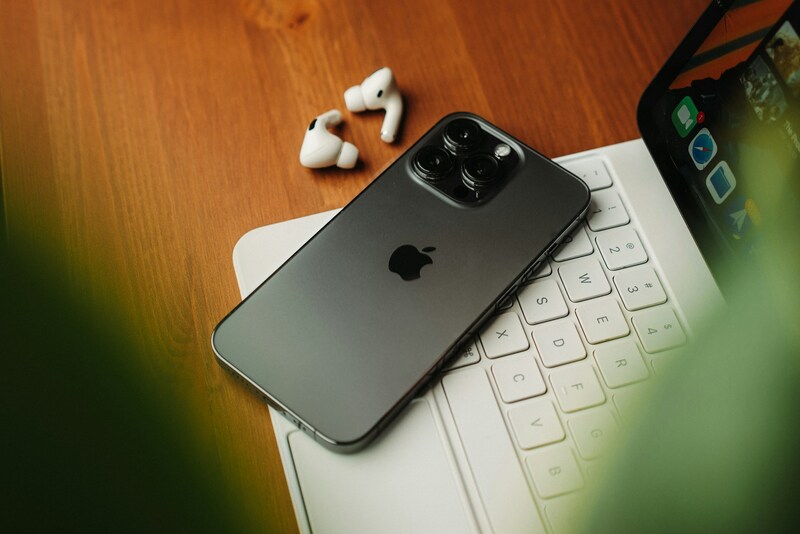
Universal Clipboard is Apple’s built-in feature that allows copying something on iPhone and pasting it on a nearby Mac without any additional steps.
How to copy on iPhone and paste on Mac, or equally how to copy from iPhone and paste on Mac, is simply the standard copy action on iPhone followed by the standard paste on Mac, as long as the requirements below are met.
Requirements for Universal Clipboard to Work
- Both devices must be signed into the same Apple Account in order to perform how to copy and paste on iPhone.
- Both must have Bluetooth and Wi-Fi turned on. The devices do not need to be on the same Wi-Fi network, but both radios must be active.
- Handoff must be enabled on both devices.
- The devices must be within Bluetooth range of each other, roughly 10 meters.
- Universal Clipboard works between compatible iPhone, iPad, Mac, and Apple Vision Pro devices.
Turning On Handoff on iPhone and Mac
On iPhone, go to Settings > General > AirPlay & Continuity (or AirPlay & Handoff on some versions), then turn on Handoff.
On Mac, open System Settings > General > AirDrop & Continuity (or AirDrop & Handoff), then turn on Allow Handoff between this Mac and your iCloud devices.
Once both are on, copy the item on iPhone, then paste it on the nearby Mac soon afterward. Universal Clipboard content remains available on the other device only briefly. The clipboard syncs automatically.
5. When Copy and Paste Is Not Working
A few specific issues affect how to copy and paste on iPhone.
- Paste permission appears: iOS may ask whether an app can paste content copied from another app. Choose the appropriate permission if you trust the destination app. If Paste is unavailable, first confirm that the destination supports the type of content you copied.
- Universal Clipboard not syncing: if the clipboard is not sharing between iPhone and Mac, check that Handoff is enabled on both devices, both have Bluetooth and Wi-Fi active, and both are signed into the same Apple Account. Toggling Handoff off and back on on both devices often resolves a sync issue.
- Copied content was replaced: iPhone generally pastes the most recently copied clipboard content. If you copy something else, the previous item is replaced.
- Restart the iPhone: a temporary software state can prevent clipboard functions from working. Restarting the iPhone can clear a temporary software issue if copy and paste has stopped responding unexpectedly.
6. FAQs
Why Isn’t Universal Clipboard Working Between My iPhone and Mac?
The most common causes are Handoff being off on one or both devices, Bluetooth being disabled on either device, or the devices not being within Bluetooth range. Both devices must be signed into the same Apple Account.
How Long Does Copied Content Stay on the Clipboard?
iPhone normally keeps the most recently copied item available until it is replaced by something else, but Apple does not publish a guaranteed retention time for the local clipboard. For Universal Clipboard, copied content is available on nearby Apple devices only briefly.
Can I Copy and Paste Between iPhone and a Windows PC?
Not natively. Apple’s Universal Clipboard does not support Windows, so you’ll need a cross-platform app, cloud service, email, or messaging app to move content between an iPhone and PC.
Does the Three-Finger Gesture Work on All iPhone Models?
Yes. Current iPhones support the three-finger copy, cut, and paste gestures in compatible editing contexts. The three-finger pinch for copy and three-finger spread for paste are available regardless of iPhone model as long as the software is up to date.
Conclusion
Copy and paste on iPhone becomes much more useful once you go beyond the basic tap-and-hold method. Three-finger gestures can speed up text editing, while Universal Clipboard makes it easy to move content between nearby Apple devices.
For how to copy and paste on iPhone, the best method is simply the one that fits the task: use the standard menu for quick edits, drag and drop for moving items between supported apps, or Universal Clipboard when your Mac is part of the workflow.