How to search text messages on iPhone can become frustrating when the conversation is years old, the contact name has changed, or you remember the date but not the exact words.
The Messages app can search people, keywords, links, and other content, but it still does not offer a simple filter for jumping to a specific day. Use the methods below to narrow the search, work around the missing date filter, and find out whether the message is still stored before spending time scrolling through an endless thread.
1. Does iPhone Let You Search Messages by Date Directly?
ot through a dedicated date filter. The Messages search tool lets you search by keyword, person, conversation, or content type, but Apple does not provide a filter that jumps directly to messages from a particular day, month, or year.
Typing a date may find messages that contain that date as text, but it does not reliably filter messages according to when they were sent. In iOS 26, Apple Intelligence may help with natural-language searches on supported devices, but it should not be treated as an exact date-search tool.
The most reliable workaround for how to search text messages by date on iPhone is to narrow the results by contact and keyword, open the correct conversation, and then scroll through its date separators.
2. How to Search Text Messages on iPhone by Date
The four-step approach below is the closest the native Messages app gets to date-based search. It narrows down the result set and uses the thread timeline to find the right period for how to search text messages on iPhone.
Step 1: Open the Messages search field.
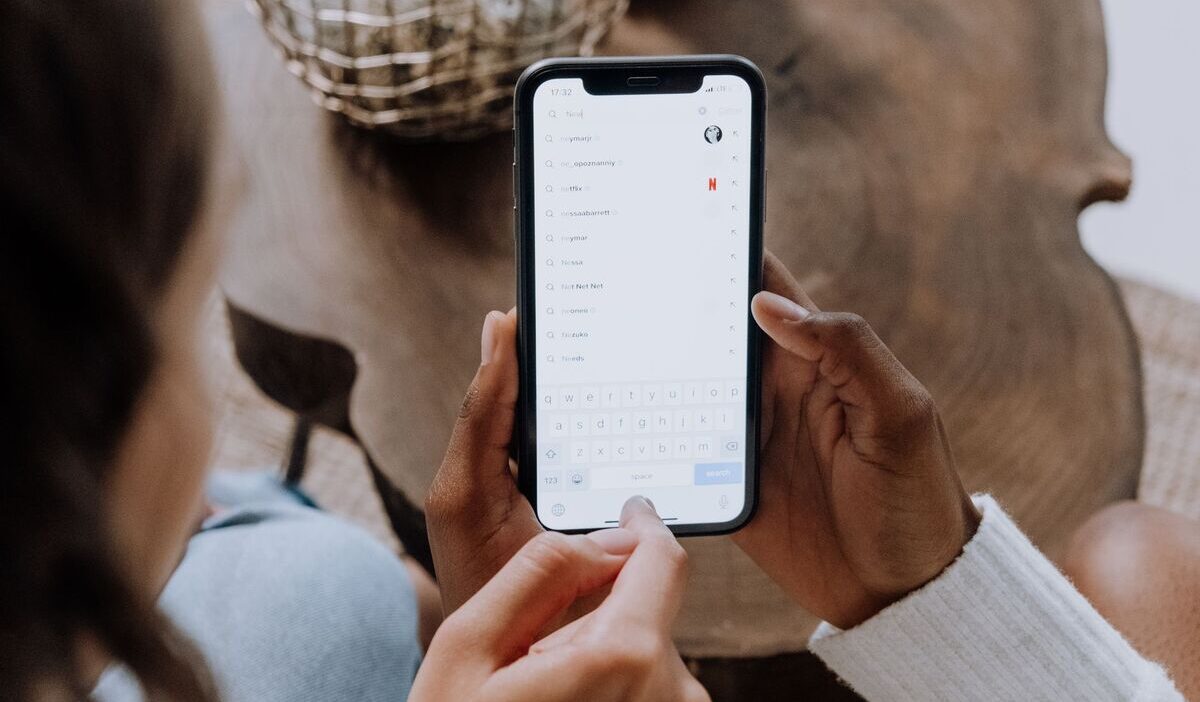
Open the Messages app and return to the conversation list. In iOS 26, tap the search field at the bottom of the screen. In iOS 18 or earlier, swipe down on the conversation list to reveal the search field at the top.
Step 2: Filter the results by person or conversation.
Type the contact’s name. Tap a filter such as Messages with or Messages in when it appears. This narrows the search to messages involving that person or conversation.
Step 3: Add a keyword if you remember one..
Enter a word, phrase, location, event, or project name that may have appeared in the message. Combining a contact filter with a keyword is usually faster than scrolling through the entire conversation.
Step 4: Open the conversation and use the date separators.
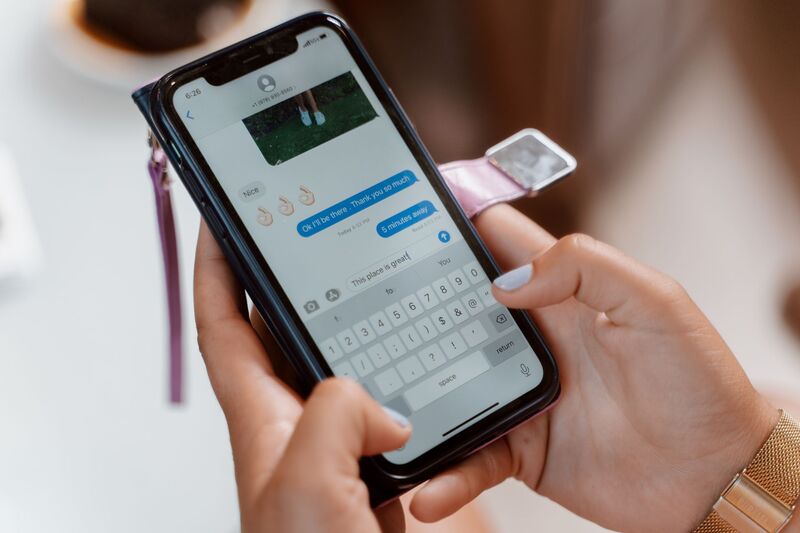
Tap the matching result, then scroll upward through the conversation. Date separators show when groups of messages were sent, helping you locate the approximate period.
There is no native button that jumps directly to a specific date, so long conversations may still require some scrolling.
3. Using Spotlight Search to Find Messages
Spotlight can find Messages content alongside results from other apps.
Swipe down from the middle of the Home Screen, enter a distinctive word or phrase, and look for relevant Messages results. Tap a result to open it in Messages.
If messages do not appear, go to:
- Settings > Search > Messages
- Turn on Show App in Search and Show Content in Search.
Spotlight does not provide a date filter, and its results may depend on how much content has finished syncing and indexing.
>>> Read more: How to Block Text Messages on iPhone for Good
4. Searching Old Text Messages on iPhone
Finding older messages requires confirming they are still stored on the device, then using the available search tools to locate them.
Check Whether Old Messages Are Still Saved
How to search old text messages on iPhone? Go to:
Settings > Apps > Messages > Keep Messages
The available options are:
- 30 Days
- 1 Year
- Forever
If 30 Days or 1 Year is selected, messages and attachments older than that period are automatically removed. Selecting Forever keeps messages unless they are manually deleted or removed through iCloud syncing.
Search iCloud-Synced Messages Across Devices
If Messages in iCloud is enabled, your conversations stay updated across supported Apple devices signed in to the same Apple Account.
How to search text messages on iPhone? Go to:
- Settings > your name > iCloud > See All or Show All > Messages in iCloud
- Make sure Use on This iPhone is turned on.
You can then search the synced history through Messages on an iPhone, iPad, or Mac. Messages cannot currently be opened or searched through iCloud.com.
Keep in mind that deleting a synced message on one device also deletes it from the other devices using Messages in iCloud.
Check Recently Deleted if the Message Was Deleted
Open Messages, tap Filter, then tap Recently Deleted.
Messages can generally be restored for up to 30 days. Select the conversation, tap Recover, and confirm the recovery.
Recently deleted conversations do not appear in normal Messages search results, and there is no search field inside Recently Deleted.
>>>Read more: How to See Deleted Messages on iPhone: Safe Ways That Work
Be Careful With Third-Party Recovery Tools
Third-party recovery tools cannot guarantee that they will recover deleted messages directly from an iPhone. Their results often depend on whether an older backup contains the conversation.
If Messages in iCloud was enabled, the messages were synced separately and were not stored in the normal iCloud Backup. If it was disabled, a backup created before the deletion may contain them.
Before installing recovery software, review its privacy policy, requested device access, pricing, and refund terms. Avoid paying based only on a preview that does not confirm the full message can be restored.
5. What to Do If You Still Can’t Find a Message
If Messages and Spotlight do not find the conversation you use the how to search text messages on iPhone to find, try these checks:
- Search with shorter or different keywords
- Check Messages on another synced iPhone, iPad, or Mac
- Open Filter and review Recently Deleted
- Confirm the Keep Messages setting
- Allow time for Messages in iCloud to finish syncing
- Check whether a backup created before the deletion may contain the conversation
- Do not restore a backup to your primary iPhone without understanding that the process may replace its current contents.
FAQs
Can I Type a Specific Date Into the Messages Search Bar?
No. The Messages search bar does not accept dates as input and will not filter by date. Typing a date returns keyword matches for that text string rather than messages sent on that date.
Does This Work the Same for SMS and iMessage?
Yes. The Messages app stores and searches both SMS (green bubble) and iMessage (blue bubble) conversations using the same interface. The search bar, Spotlight, and the Keep Messages setting apply to both types.
How Far Back Can I Search My Message History?
You can search as far back as messages remain stored and indexed. Messages may be missing if they were manually deleted, automatically removed by the Keep Messages setting, or have not finished syncing from iCloud.
Are Third-Party Message Recovery Tools Safe to Use?
Safety and reliability vary. These tools may request extensive access to your iPhone or backups and cannot guarantee recovery. Use the Recently Deleted folder or an existing pre-deletion backup before considering third-party software.
Conclusion
Finding one message inside years of conversations can feel like searching for something that may no longer be there.
Once you understand how to search text messages on iPhone, the process becomes more manageable: begin with a contact or distinctive keyword, use date separators to narrow the timeline, and check syncing, retention, or Recently Deleted when nothing appears.
Even when the app cannot jump directly to a date, a careful search can help you determine whether the message is hidden, still syncing, or already gone.