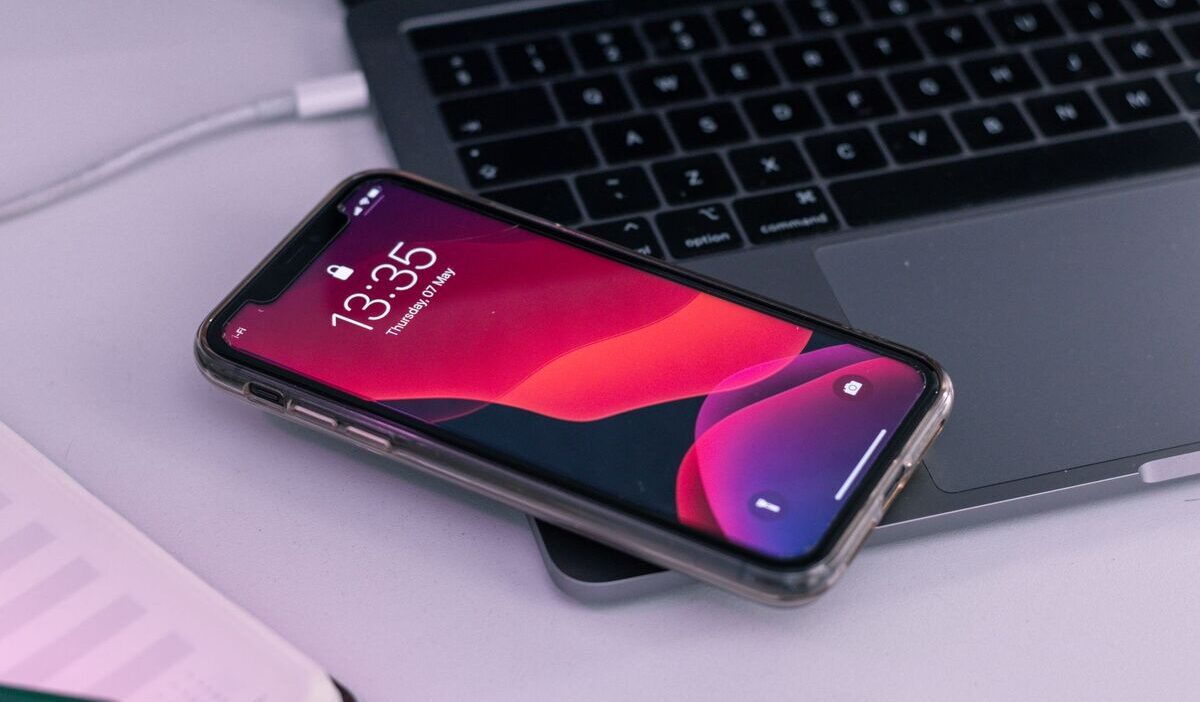
How to turn off silent mode on iphone depends on whether the device has a Ring/Silent switch or an Action button. The standard iPhone 15 and iPhone 15 Plus still use the physical switch, while supported models beginning with the iPhone 15 Pro and Pro Max use an Action button.
The wrong button, a reassigned Action button, an active Focus, or a low ringer volume can all make the phone seem stuck on silent. Follow the matching method below to restore incoming-call and notification sounds without changing unrelated audio settings.
1. Check Whether Silent Mode Is On
On models with a Ring/Silent switch, check the switch above the volume buttons. If orange is visible, Silent mode is on. Move the switch toward the front screen to turn it off.
On supported models with an Action button, open Control Center and check the Mute control, or go to Settings > Sounds & Haptics and review the Silent Mode toggle.
- Look at the top left of the iPhone. On models with the Ring/Silent switch, a small orange stripe visible in the switch slot indicates silent mode is active. No orange stripe means the switch is in the ring position.
- Open Control Center and check the Focus control. If Do Not Disturb, Sleep, Work, or another Focus is highlighted, tap it to turn it off. An active Focus can silence selected calls and notifications even when Silent mode is already off. This can make the phone behave similarly to silent mode even when the switch is in the ring position.
- Check the ringer volume under Settings > Sounds & Haptics. Drag the Ringtone and Alerts slider to the right if it is too low. The volume buttons can also adjust the ringer when no media is playing, provided Change with Buttons is enabled. Raising this volume makes alerts louder, but it does not turn Silent mode off by itself.
- Listen for vibration. However, do not use vibration alone to determine whether Silent mode is active. Under Settings > Sounds & Haptics > Haptics, the iPhone can be set to Always Play, Play in Silent Mode, Don’t Play in Silent Mode, or Never Play. Check the switch, Control Center, or Silent Mode setting instead.
2. How to Turn Off Silent Mode on iPhone
The method differs between iPhone models. Two hardware approaches and one software-based option cover all current iPhones.
On iPhones With the Ring/Silent Switch
The Ring/Silent switch is located above the volume buttons on the left side of the iPhone. It is used on the standard iPhone 15 and iPhone 15 Plus, the iPhone 14 series, and earlier switch-equipped models.
To turn off Silent mode, move the switch toward the front of the iPhone, in the direction of the screen. The orange indicator should no longer be visible.
If calls still make no sound, check the Ringtone and Alerts slider under Settings > Sounds & Haptics and confirm that no Focus is silencing the call.
On iPhones With the Action Button
Supported models beginning with the iPhone 15 Pro and Pro Max use an Action button instead of the Ring/Silent switch. The Action button is also included across the iPhone 16 and current iPhone 17-generation lineups.
By default, the button switches between Ring and Silent modes. Press and hold the Action button until the on-screen indicator confirms that Silent mode is off. A quick press may not activate the assigned action.
If the button opens the camera, flashlight, Focus, or another feature, it has been reassigned. Use Control Center or go to Settings > Sounds & Haptics and turn Silent Mode off instead.
Using Settings or Control Center Options
On supported iPhones with an Action button, swipe down from the top-right corner to open Control Center, then tap the Mute control to turn Silent mode off. If the control is not visible, Control Center can be customized to include additional controls.
You can also go to Settings > Sounds & Haptics and turn Silent Mode off directly on Action-button models.
The Focus control is separate. Turn off an active Focus if calls or notifications remain silenced after Silent mode has been disabled.
The Ringtone and Alerts slider changes sound volume only. Raising it does not change the Silent Mode setting.

3. Why Your iPhone Still Vibrates in Silent Mode
An iPhone may continue vibrating in Silent mode if its haptics are configured to play while sounds are muted.
Go to Settings > Sounds & Haptics > Haptics. Choose Don’t Play in Silent Mode if you want vibration in Ring mode but not Silent mode. Choose Never Play to disable haptics for incoming calls and alerts in both modes.
To disable all system vibration, go to Settings > Accessibility > Touch and turn off Vibration. Be careful with this option because it also disables vibrations for earthquake, tsunami, and other emergency alerts.
>>>Read more: How to Send a Voice Message on iPhone (iMessage and More)
4. What to Do If Silent Mode Won’t Turn Off
If the phone appears to be in silent mode but the switch or Action button is already in the ring position, a few things may be responsible.
- A Focus is still silencing notifications. Open Control Center, tap Focus, and turn off any highlighted mode. Focus settings work independently from Silent mode and may continue filtering calls and alerts after the ringer is restored.
- The Ring/Silent switch or Action button is blocked or damaged. Remove any case or protective film that may be pressing against it. Check for dirt around the control and clean the area gently with a soft cloth.
- A temporary software issue is affecting sound. Go to Settings > General > Shut Down, drag the slider, and wait about 30 seconds. Turn the iPhone back on using the side or top button for the model.
- The ringer volume is too low. Go to Settings > Sounds & Haptics and move the Ringtone and Alerts slider to the right. If no test sound plays while moving the slider, or its speaker control is unavailable, the speaker may need further troubleshooting or service.
5. FAQs
Why Does My iPhone Keep Switching to Silent Mode on Its Own?
On iPhones with the Ring/Silent switch, accidental toggling from contact with a pocket, case, or surface is the most common cause. If the switch feels loose, even slight pressure can flip it. A protective case that presses against the switch area can also cause this.
Does Silent Mode Affect Alarms?
No. Clock alarms play at their set volume regardless of whether silent mode is active. This is intentional and consistent across all iOS versions. Emergency alerts and certain medical app alerts may also bypass silent mode depending on their system priority.
Can I Customize What the Action Button Does Instead?
Yes, on iPhone 15 Pro and later. Go to Settings, Action Button, and select from the available options including Shortcuts, Camera, Torch, Focus, Translate, and Accessibility features, among others.
Does Silent Mode Mute Calls Too?
Yes. When silent mode is active, incoming calls do not play a ringtone. The call still arrives and the phone can vibrate if Vibrate on Silent is enabled, but no audio ringtone plays.
Conclusion
How to turn off silent mode on iphone depends on the controls available on the device. Move the Ring/Silent switch toward the screen on switch-equipped models, or press and hold the Action button on supported models when it is assigned to Silent Mode.
Action-button models can also turn Silent mode off through Control Center or Settings > Sounds & Haptics. If the iPhone remains quiet afterward, check the Ringtone and Alerts volume and disable any Focus that is still filtering calls or notifications.