How to set timer on iPhone camera is one of those simple tricks that can completely change the way you take photos. Whether you’re capturing a group shot, a selfie without holding your phone, or trying to get a steadier, more natural frame, the built-in timer gives you just enough delay to get into position without rushing.
In just a few taps, your iPhone can handle the countdown for you, but knowing where to find the option and how it actually works makes all the difference. Here’s how to use it properly so you never miss the shot again.
1. How to Set Timer on iPhone Camera
The camera timer is available directly inside the Camera app. No separate app or setting is needed. The process is pretty straightforward once you know the drill:
Step 1: Open the Camera App
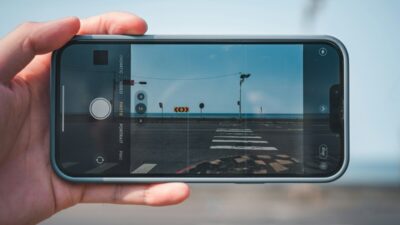
Open the Camera app. The timer works in Photo mode, which is the default mode when the Camera opens.
Make sure the camera is in Photo mode before looking for the timer icon, since the option is not available in all modes.
Step 2: Access the Timer Settings
Tap the arrow at the top center of the screen to expand the camera controls toolbar. A row of icons appears below the viewfinder. Tap the timer icon, which looks like a clock face with an arrow.
On some iPhone models, the timer icon is already visible in the toolbar without needing to expand the controls first.
Step 3: Choose 3, 5, or 10 Seconds and Take the Shot
Tapping the timer icon presents three options: 3 seconds, 5 seconds, and 10 seconds. Select the duration that gives enough time to get into position. Tap the shutter button once.
The camera displays a countdown on screen and flashes the LED with each second. When the countdown ends, the camera takes a burst of 10 photos automatically, giving several frames to choose the best one from.
2. Getting Better Results With the Camera Timer
The timer handles the countdown, but the quality of the photo still depends on the setup. Three habits make a consistent difference.
Take Sharper Photos With a Stable Surface
Any movement during the countdown can blur the shot. Propping the phone against a book, a bag, or a surface at the right height is a quick fix when no tripod is available.
The phone needs to be completely still before and during the countdown, particularly for shots in lower light where the shutter speed may be slower.
Use a Tripod for Group Pictures
A small phone tripod or a table-top tripod mount gives precise angle control and eliminates the trial-and-error of finding a stable surface.
For group photos, getting the camera to eye level rather than angling it up from a low surface makes a noticeably better result.
A basic phone tripod is one of the more useful low-cost accessories for anyone who takes regular group or solo shots without a photographer.
Position Yourself Before the Countdown Starts
Use the 10-second timer when the distance from the phone is needed, and walk through where each person should stand before starting the countdown.
Having a rough plan for the position before tapping the shutter avoids the scramble during the countdown that produces blurred or off-frame shots.
The 3-second timer works better for quick solo shots where the phone is nearby and only a moment is needed to drop hands and look at the camera.
>>>Read more: How to Change Alarm Sound on iPhone and Replace Default Apple Tones
3. iPhone Camera Timer Tips and Tricks
A few details about how the timer works and how to set timer on iPhone camera are worth knowing before relying on it regularly.
Using the Timer With the Front Camera
The timer works on the front (selfie) camera exactly the same way as the rear camera. Switch to the front camera first using the camera flip icon, then set the timer as described above.
The countdown and burst behavior are identical. The front camera timer is particularly useful for selfies taken on a surface or stand, where the goal is a natural, non-outstretched-arm pose.
What Happens to Burst Photos After a Timed Shot
When the timer fires, the iPhone takes 10 photos in rapid succession rather than a single shot. These are saved as a burst in the Photos app.
To choose the best frame, tap the burst thumbnail in Photos, tap Select, and choose the preferred shot. The rest can be deleted to save storage.
Apple’s support page on using burst mode explains how to navigate and choose from burst photos in more detail.
Turning the Timer Off
Besides knowing how to set timer on iPhone camera, to disable it, tap the icon again and select the off option (shown as a dash or the word Off, depending on the iOS version).
The setting does not reset automatically between sessions, so if the timer was set during a previous use, it remains active the next time the Camera app opens.
4. When the Timer Option Is Missing
The timer icon not appearing is almost always explained by one of three things, and each has a straightforward fix.
Check the Camera Mode
The timer is only available in Photo mode. Switching to Video, Slo-Mo, Portrait, or other modes removes the timer option from the toolbar.
Swipe back to Photo mode at the bottom of the camera screen, and the timer icon will reappear.
Look for Expanded Camera Controls
On some iPhone models and iOS versions, the timer icon is hidden inside the expanded controls toolbar rather than being visible by default.
Tap the arrow or chevron at the top of the camera screen to expand the options row and look for the timer icon there.
Update iOS if Necessary
On very outdated iOS versions, camera interface options may not match current expectations. Check Settings, General, Software Update, and install any available update. Camera controls, including timer availability and placement, can change between iOS versions.
5. FAQs
Does the iPhone Camera Timer Work for Videos?
No. The camera timer is only available in Photo mode. Switching to Video mode removes the timer option entirely. To start a video recording after a delay, the only built-in option is using Siri to start recording or using a third-party app that includes a video countdown timer feature.
How Do I Set a Timer on iPhone Front Camera?
Switch to the front camera using the flip icon, then follow the same steps as the rear camera: tap the arrow to expand controls, tap the timer icon, and select 3, 5, or 10 seconds. The front camera timer works identically to the rear camera timer, including the 10-photo burst at the end of the countdown.
Why Is the Timer Icon Missing on My iPhone Camera?
The most common reason is being in the wrong camera mode. The timer is only available in Photo mode. If the camera is already in Photo mode and the icon is still not visible, tap the arrow at the top of the screen to expand the toolbar. If the icon is still absent, check for a pending iOS update in Settings, General, Software Update.
6. Conclusion
How to set timer on iPhone camera comes down to expanding the camera controls toolbar in Photo mode, tapping the timer icon, and selecting a countdown duration. The camera handles the rest automatically.
A stable surface or tripod, combined with the 10-second option for group shots, consistently produces better results than holding the phone. If the timer icon is missing, switching back to Photo mode resolves it almost every time.