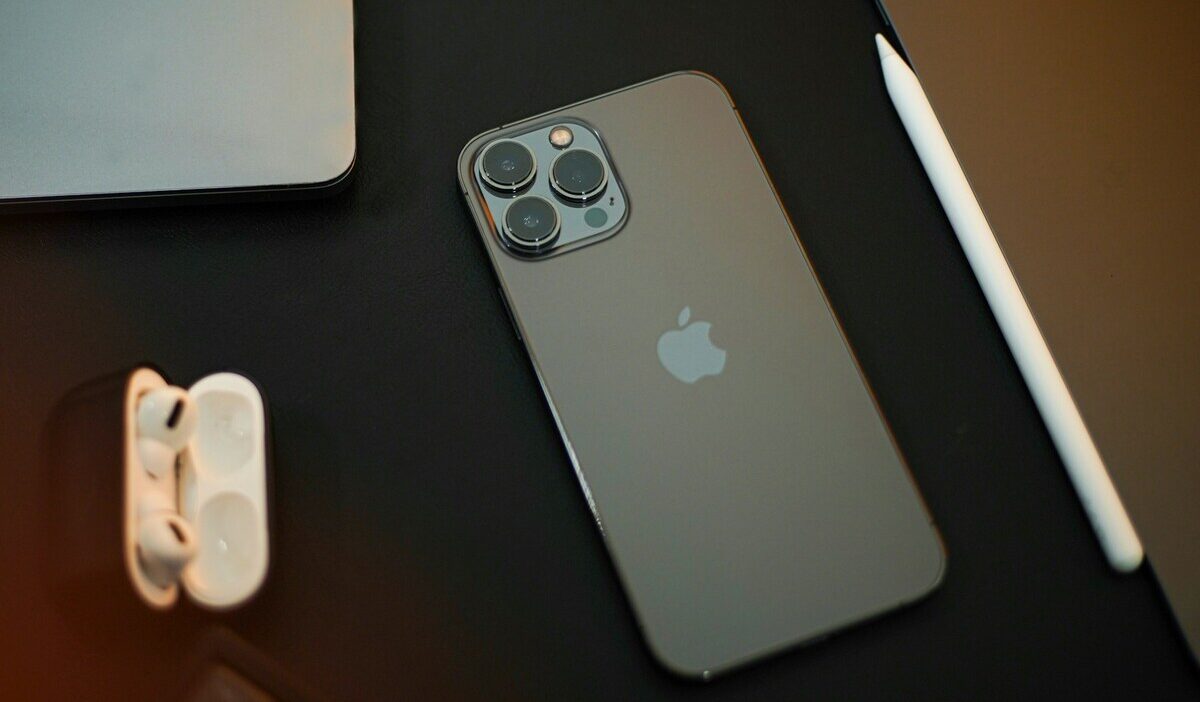
What iPhone do I have is a question many users ask when buying accessories, checking software compatibility, or preparing for repairs or resale. The good news is that Apple provides several simple ways to identify your exact model in seconds, and even a few backup methods if your device won’t turn on.
This guide walks through all the reliable ways to identify your iPhone, plus how to understand model numbers and why they matter.
1. What iPhone Do I Have? The Quickest Answer
For a working iPhone, the Settings app gives a direct answer in seconds, no guesswork needed.
1.1 Check Your iPhone Settings
The most accurate way to confirm what iPhone do I have is by going into the system settings.
Open Settings, then go to General, and tap About. At the top of the screen, you will see the model name, such as iPhone 15 Pro or iPhone 13.
Below that, you will also find the model number, which gives even more specific details about your device variant, including region and hardware configuration.
This method is especially useful when you need exact information for support, repairs, or compatibility checks.
1.2 Find the Model Number on the Device
Once you find your model number, you’ll notice it looks like a code starting with the letter “A,” followed by four digits (for example, A2848).
This is important because the model number identifies the exact version of your phone, not just the general name. Two devices with the same name can still have different model numbers depending on where they were sold or how they were configured.
Understanding this detail helps avoid mistakes when ordering parts or checking compatibility.
2. How to Find Your iPhone Model Without Turning It On
If your phone is broken, dead, or you are checking a secondhand device, there are still several ways to figure out what iPhone do I have without powering it on.
These physical methods are especially useful when Settings is not accessible.
2.1 Check the Back of the Phone
On iPhone models up to and including the iPhone 7 series, the model name was printed on the back.
Starting with the iPhone 8 and later, Apple removed the printed name from the back, leaving only small regulatory text and, on some models, the model number in tiny print near the bottom.
2.2 Check the SIM Card Tray or Connector Slot
One of the most reliable ways to determine what iPhone do I have without turning it on is by checking the SIM tray.
On many iPhone models, the model number is etched directly onto the SIM card tray. You can remove it using a SIM eject tool or a paperclip and read the code printed on it.
On older devices (especially before iPhone 8), some model information may also appear on the back of the phone, but newer models have removed most visible markings from the rear surface.
2.3 Use the Original Packaging
If you still have the original packaging, it becomes one of the easiest ways to confirm what iPhone do I have.
Apple prints both the model name and model number on the side or bottom of the box, along with the serial number and IMEI.
This method is especially helpful when buying or selling a used phone, as it provides full verification without needing to power on the device.

3. iPhone Model Numbers and What They Mean
Once you identify your model number, the next step is understanding what it actually means.
3.1 How to Match a Model Number to an iPhone Name
Different regions and carriers often use different model numbers even for the same iPhone generation. That means a single model name can have multiple variations under the hood.
Apple maintains an official reference list that matches each model number to its exact device version, making it the most reliable source for verification.
>>>Read more: How Long Is an iPhone 11? Full Dimensions, Size, and Specs
3.2 Common iPhone Models and Model Numbers
Below are examples of recent iPhone generations and their model numbers. These help illustrate how multiple variants can exist under one model name.
| iPhone Model | Model Numbers |
|---|---|
| iPhone 16 Pro Max | A3084, A3290, A3291, A3292 |
| iPhone 16 Pro | A3083, A3286, A3287, A3288 |
| iPhone 16 | A3081, A3287, A3081, A3082 |
| iPhone 15 Pro Max | A2849, A3105, A3106, A3108 |
| iPhone 15 | A2846, A3090, A3092, A3094 |
| iPhone 14 Pro Max | A2651, A2884, A2890, A2892 |
| iPhone 14 | A2649, A2881, A2882, A2883 |
| iPhone 13 | A2482, A2631, A2633, A2634, A2635 |
| iPhone SE (3rd gen) | A2595, A2782, A2783, A2784 |
| iPhone 12 | A2172, A2402, A2403, A2404 |
| iPhone 11 | A2111, A2221, A2223 |
4. Why It Matters to Know Your iPhone Model
Understanding your device goes beyond curiosity. It has real practical value in everyday use.
- Software Updates and Compatibility
Knowing your model helps you understand which iOS versions are supported and what features your phone can access. Older devices may still receive updates but not the newest features.
- Buying Cases and Accessories
Cases, screen protectors, and camera accessories are often model-specific. Even small design differences between generations can affect compatibility.
- Repair and Trade-Ins
Repair shops and trade-in services rely on exact model details to provide accurate pricing and parts. A correct identification prevents delays and mismatches.
5. FAQs
How Do I Know What Generation My iPhone Is?
You can determine this directly from the model name in Settings, General, About. If the phone is not working, the model number can be matched with Apple’s official list to identify the generation.
How Do I Find My iPhone Serial Number?
The serial number is also located in Settings, General, About, just below the model information. It is unique to each device and is required for warranty checks and Apple support services. It can also be found on the original packaging and, in some cases, on the SIM tray.
What Is the Difference Between Model Name and Model Number?
The model name (like iPhone 15 Pro) refers to the general product generation. The model number (like A2848) identifies the exact regional or carrier-specific version of that device. Two phones can share the same name but still differ in model number.
6. Conclusion
What iPhone do I have can be answered quickly using Settings, or through physical identifiers like the SIM tray or original box if the device is not working. Each method leads you to the same core information: your model name and model number.
Knowing this detail is useful for updates, accessories, repairs, and resale, making it one of the most practical pieces of information you can check on your device.