
Printing from an iPhone is much easier now than it was a few years ago. Most wireless printers can connect directly to iOS devices, so you no longer need to move files to a laptop before printing them. Apple’s AirPrint feature works with many modern printers, and even older printers usually have their own mobile apps.
This guide explains how to print from iPhone step by step, including different printing methods and some common fixes if the printer does not appear on your screen.
1. What You Need Before Printing From an iPhone?
The first thing you need is a printer with wireless support. Many newer models from Canon, HP, Epson, and Brother already work with iPhones.
Your iPhone and printer should also be connected to the same Wi-Fi network. If they are using different networks, the iPhone usually cannot detect the printer.
It’s also a good idea to update your iPhone to the latest iOS version. Older software versions can sometimes cause AirPrint issues.
Once everything is connected, prepare the files you want to print. iPhones can print different types of content, including:
- Photos
- PDFs
- Emails
- Notes
- Boarding passes
- Web pages
- Documents from apps like Google Docs or Canva
2. How to Print From iPhone Using AirPrint?
AirPrint is Apple’s built-in wireless printing feature. If your printer supports it, setup usually takes less than a minute.
Step 1: Connect both devices to the same Wi-Fi network
Start by checking the Wi-Fi connection on both devices. AirPrint only works when the printer and iPhone are on the same network.
Step 2: Open the file you want to print
Find the document, image, email, or PDF on your iPhone.
You can print directly from apps like Photos, Safari, Notes, Files, or Mail.
Step 3: Open the Share menu
Tap the Share icon on the screen. On iPhone, this icon looks like a square with an arrow pointing upward.
Step 4: Find the Print option
Scroll down until you see “Print.”
If the option does not appear immediately, some apps may hide it under additional menus.
Step 5: Select your printer
Your iPhone will search for nearby AirPrint printers automatically.
When your printer name appears, tap it once to continue.
Step 6: Change print settings if needed
Before printing, you can adjust:
- Paper size
- Number of copies
- Color settings
- Page range
- Double-sided printing
Step 7: Start printing
Tap the Print button in the top-right corner to begin printing.
For most users, this is the easiest way to learn how to print from iPhone because everything is already built into iOS.
>>> Learn More: How to Print Pictures From iPhone: Easy Methods at Home or in Store 2026
3. Cool Things You Can Print Directly From an iPhone
Many people only print office files, but iPhones support much more than standard documents.
Photos from the Photos app
You can print pictures directly from your camera roll without transferring them to another device first.
Emails and attachments
The Mail app supports printing for both emails and attached files.
This is useful for invoices, forms, tickets, or signed documents.
Notes, PDFs, and web pages
Apple Notes, Safari pages, and PDFs can all be printed directly from the Share menu.
A lot of users print recipes, homework files, or saved articles this way.
Boarding passes and QR codes
Some people still prefer having paper copies of flight tickets or event passes, especially while traveling.
Most airline apps already include built-in printing support.
Documents from apps like Google Docs or Canva
Apps such as Google Docs and Canva also support wireless printing on iPhone.
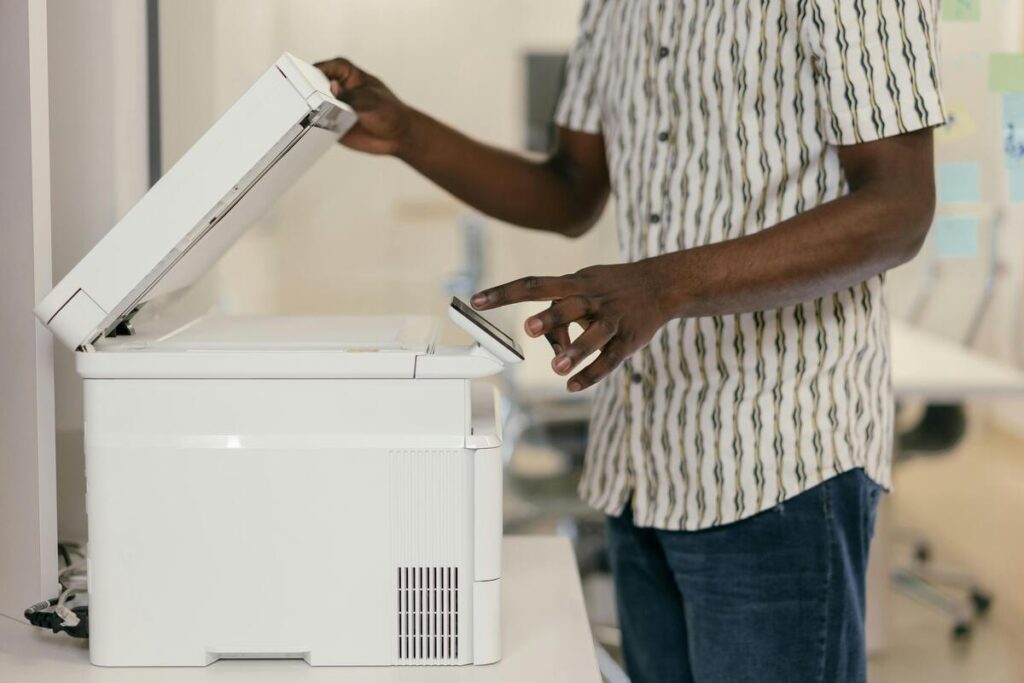
4. How to Print From iPhone Without AirPrint?
Not all printers support AirPrint, especially older models. In that case, you can still print by using the printer manufacturer’s app.
Step 1: Install the printer’s official app
Go to the App Store and download the app for your printer brand. Some common options include:
- HP Smart
- Canon PRINT
- Epson iPrint
- Brother Mobile Connect
Step 2: Connect the printer to Wi-Fi
Follow the setup instructions inside the app. Most apps guide you through the connection process.
Step 3: Open the file on your iPhone
Find the document, image, or PDF you want to print.
Step 4: Print using the printer app
Open the file through the printer app or use the Share menu to send it there. After that, adjust the settings and print normally.
This method works well if you are trying to figure out how to print from iPhone using a printer without AirPrint support.
5. Common iPhone Printing Problems and Easy Fixes
Wireless printing usually works without much setup, but connection issues can still happen sometimes.
iPhone Cannot Find the Printer
If the printer does not appear:
- Check Wi-Fi on both devices
- Restart the printer
- Restart the iPhone
- Move closer to the router
A weak network signal is often the main reason.
AirPrint Not Working
If AirPrint suddenly stops working, update both the printer firmware and your iPhone software.
You should also reconnect the printer to Wi-Fi.
iPhone Keeps Disconnecting from the Printer
This usually happens when the Wi-Fi connection is unstable.
Restarting the router often fixes random disconnects.
Printer Showing Offline on iPhone
Turn the printer off completely, wait a few seconds, then reconnect it to the network again.
In many cases, the printer will reappear automatically afterward.
6. FAQs
Can I print from iPhone without Wi-Fi?
Yes. Some printers support Wi-Fi Direct or Bluetooth printing. Certain printer apps also allow direct connections without a local Wi-Fi network.
Does every printer support AirPrint?
No. Only compatible printers support Apple AirPrint. Older printers may still work through the manufacturer’s app.
Can I print text messages from my iPhone?
Yes. Most users either take screenshots or copy the messages into the Notes app before printing.
How do I print double-sided from iPhone?
If your printer supports duplex printing, you’ll see a double-sided option in the print settings before printing starts.
7. Conclusion
Once your printer is connected properly, printing from an iPhone only takes a few taps. You can print photos, PDFs, emails, web pages, and documents directly from your device without using a computer.
Whether you use AirPrint or a printer app, the setup process is fairly simple on most modern printers. After learning how to print from iPhone, everyday tasks like printing tickets, homework, or work documents become much quicker.