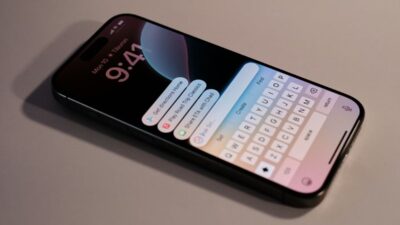
You press the Side Button expecting your iPhone to respond, but nothing happens. The screen stays on, apps remain open, and the device does not react the way it normally should.
In moments like this, turning off the phone is not just a basic action-it becomes part of troubleshooting. Many users start searching for how to turn off iPhone 16 when the usual button combination does not seem to work or when the device behaves unexpectedly.
1. When You May Need to Power Off an iPhone 16
- System slowdown or app malfunction
When several apps run at the same time, the device may become slow, or apps may stop responding. Turning off the Apple iPhone 16 can clear temporary system activity and help the phone start normally again.
- Preparing for software updates or troubleshooting
Some system updates or technical support steps require the device to be powered off first. Shutting down the phone allows the system to restart cleanly before maintenance tasks begin. A clean restart reduces the risk of update conflicts or incomplete system changes.
- Battery performance management
If the phone will not be used for a long time, powering it off helps reduce battery drain. This stops background activity that continues even when the phone is idle. This is especially useful during travel or extended periods without charging access.
- Hardware maintenance or repair preparation
Before inspection or repair, technicians often ask users to power off the device. This protects internal components and prevents electrical issues during the service process. Powering off also ensures that no data processes are active during hardware handling.
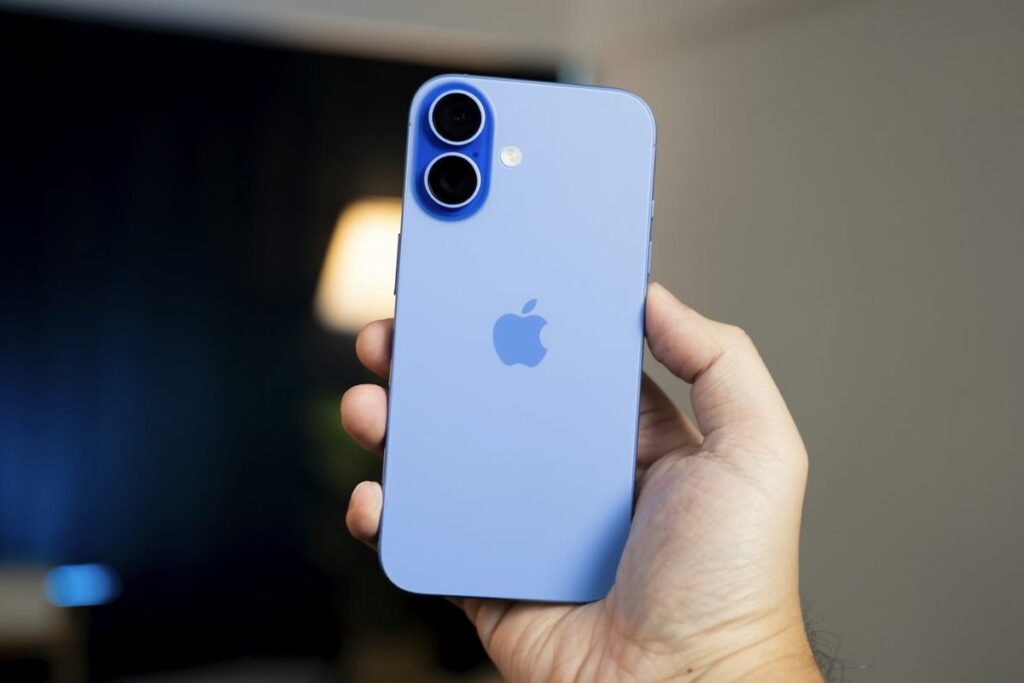
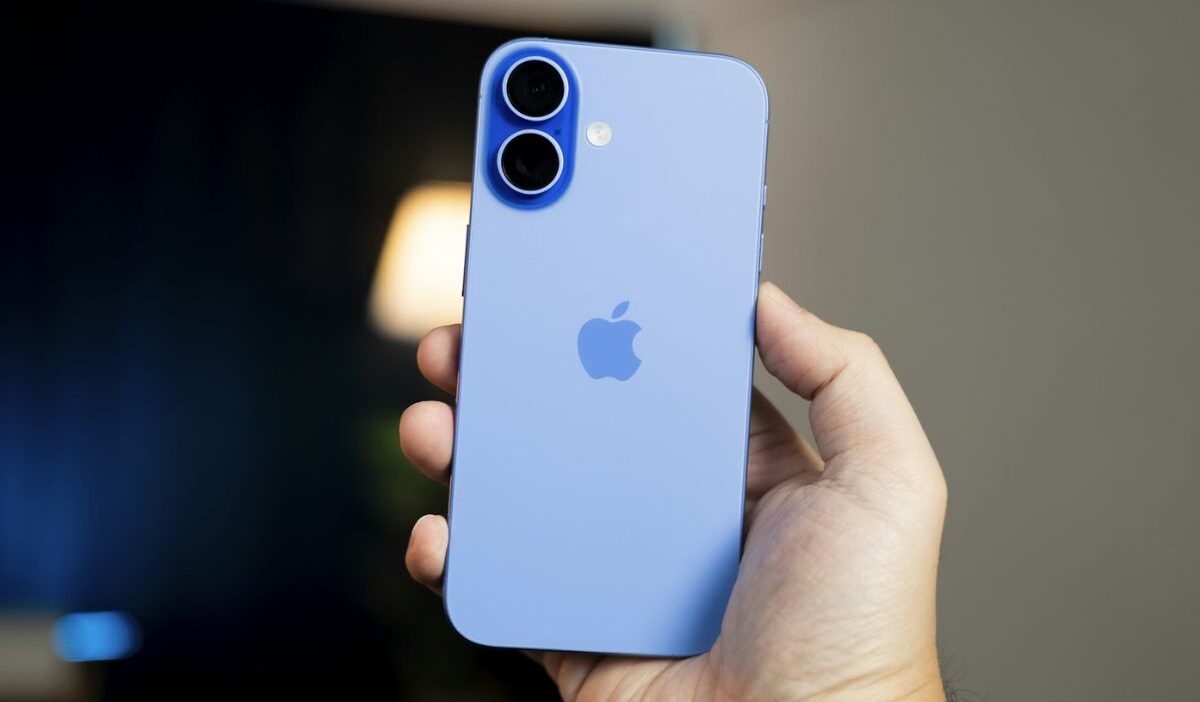
2. How to Turn Off iPhone 16 With the Side and Volume Buttons
The most common method for how to turn off iPhone 16 involves using the hardware buttons located on the sides of the device.
Follow these steps:
- Press and keep holding the Side Button together with one of the Volume buttons simultaneously.
- Continue holding both buttons until the Power Off Slider appears on the screen.
- Release the buttons once the slider becomes visible.
- Drag the Power Off Slider from left to right.
This combination is designed to prevent accidental shutdown, which is why both buttons must be pressed together instead of using a single button.
3. How to Turn Off iPhone 16 Through the Settings Menu
Another reliable option for how to turn off iPhone the 16 involves using the system settings menu. Steps to power off through settings:
- Open Settings on the iPhone.
- Tap General.
- Scroll down to the bottom of the screen.
- Tap Shut Down.
This option is useful when hardware buttons are difficult to use or when users prefer navigating through the interface.
>>> Read more: What Happens If I Reset My iPhone? Important Things You Must Know in 2026
4. Use AssistiveTouch When Physical Buttons Do Not Work
Accessibility features can also assist users in searching for how to turn off the iPhone 16 when hardware buttons are damaged or difficult to press. The AssistiveTouch feature provides on-screen controls that replace physical button functions.
To enable AssistiveTouch:
- Open Settings.
- Tap Accessibility.
- Select Touch.
- Turn on AssistiveTouch.
After activation, a floating on-screen button appears.
To shut down the device:
- Tap the Assistive Touch button
- Open Device
- Press and hold Lock Screen
- The Power Off Slider appears
This method replaces physical controls with on-screen actions, making it essential when buttons are unresponsive.
5. What to Do if iPhone 16 Will Not Turn Off
If your device does not respond to normal shutdown methods, it is important to identify alternative ways to regain control and safely power off the iPhone 16.
Perform a force restart
Press Volume Up, then Volume Down, and hold the Side Button until the Apple Logo appears. This forces the system to reload, which can restore control when the device is frozen.
Check for system update issues
Open Settings → General → Software Update. Outdated software may cause system instability that affects shutdown behavior.
Allow the battery to drain completely
If the device remains unresponsive, let the battery run out. This acts as a forced shutdown when normal methods fail.
Inspect for hardware button damage
If buttons do not respond, physical damage may be the cause. In this case, AssistiveTouch becomes the primary method for controlling the device.
6. FAQs
Can a power off help battery life?
Yes. Turning off the device stops background processes, which can reduce battery usage during idle periods.
Why the side button may not respond?
The Side Button may fail due to physical damage, internal wear, or system issues. Debris or prolonged use can also affect button responsiveness over time.
Conclusion
Turning off an iPhone is a simple action, but it plays a critical role in maintaining device stability. When users search how to turn off iPhone 16, they are often dealing with a deeper issue-unresponsive behavior, system errors, or hardware limitations.