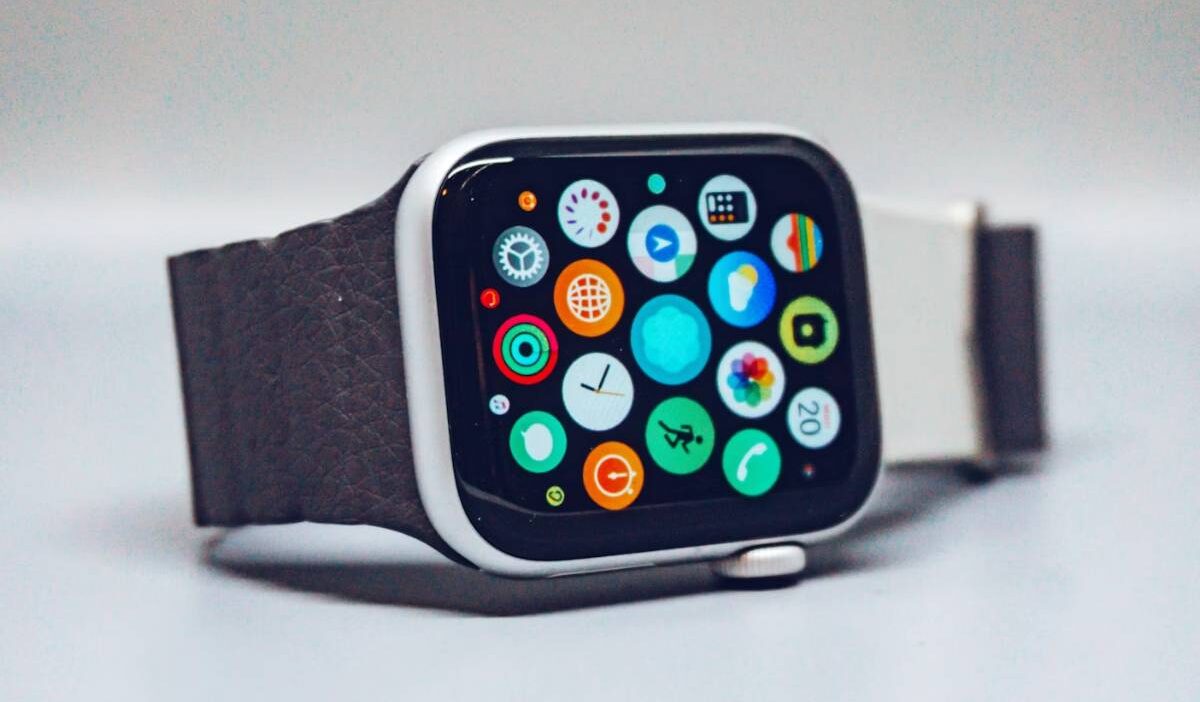
If your watch is freezing, not syncing properly, or you plan to sell it, you may be wondering how to reset Apple Watch safely. Resetting can solve performance issues, remove personal data, or prepare the device for a new user.
However, there are different reset methods depending on whether you still have access to your iPhone or passcode. This guide explains each reset option clearly so you can choose the right one without risking unnecessary data loss.
1. What Does Resetting an Apple Watch Actually Do?
Before learning how to reset Apple Watch, it is important to understand what the reset process actually changes. Resetting an Apple Watch erases personal data, removes settings, and returns the device to its factory state.

When you reset the watch, it will:
- Delete apps installed on the watch
- Remove health and fitness data stored locally
- Clear messages and notifications
- Unlink from your Apple ID (if properly unpaired)
- Remove payment cards from Apple Pay
After the reset, the watch behaves like a brand-new device. You will need to pair it again with an iPhone before using it.
It is important to note that resetting is different from restarting. A restart simply refreshes the system. Resetting removes data and settings permanently unless you restore from a backup.
2. When Should You Reset Your Apple Watch?
You should reset your Apple Watch only when necessary. The process is helpful in several situations, especially when normal troubleshooting does not resolve the issue.
Common reasons include:
- The watch freezes or crashes repeatedly
- Syncing problems with your iPhone
- Preparing to sell or give away the watch
- Removing a forgotten passcode
- Fixing serious performance or software errors
If the device is still functioning normally, a simple restart may be enough. However, if problems continue or you are transferring ownership, learning how to reset Apple Watch ensures your data is removed securely and the device is ready for a fresh setup.
3. How to Reset Apple Watch Using Your iPhone
If you still have access to your paired iPhone, this is the safest method when learning how to reset Apple Watch. Resetting through the iPhone automatically unpairs the watch and removes Activation Lock, which prevents account issues later.
Open the Watch App
On your iPhone, open the Watch app. Make sure your Apple Watch is nearby and connected via Bluetooth.
Tap the My Watch tab at the bottom if it is not already selected.
Tap General
Scroll down and tap General. This section contains system-related settings, including reset options.
Select Reset
Scroll to the bottom of the General page and tap Reset. You will see multiple reset options.
Tap Erase Apple Watch Content and Settings
Select Erase Apple Watch Content and Settings. If your watch has cellular service, you may be asked whether you want to keep or remove your plan. Choose the appropriate option based on whether you plan to use the watch again.
Confirm and Unpair
Confirm your choice. Your iPhone will automatically unpair the watch, back it up, and begin erasing all content.
This method ensures your Apple ID is properly removed, which is essential if you are selling or giving away the device.
4. How to Reset Apple Watch Directly on the Watch
If you no longer have access to your iPhone, you can reset the device directly from the watch itself. This method still erases data but may not remove Activation Lock unless you unpair properly.
Open Settings on Apple Watch
Press the Digital Crown to access the app grid or list view. Tap Settings on the watch.
Tap General
Scroll down and tap General.
Select Reset
Scroll to the bottom and tap Reset.
Tap Erase All Content and Settings
Choose Erase All Content and Settings. If prompted, enter your passcode to confirm.
The watch will begin erasing all data and return to factory settings. After the reset is complete, you can pair it again with an iPhone as a new device.
Using either method completes the process for how to reset Apple Watch safely.
5. How to Reset Apple Watch Without the Passcode
If you forgot your passcode, you can still complete how to reset Apple Watch using a built-in recovery method. This process erases all content and settings from the device. After the reset, you will need to pair it again with an iPhone.
Place Watch on Charger
Start by placing your Apple Watch on its charger. Make sure it remains connected to power throughout the reset process to prevent interruption.
Press and Hold Side Button
Press and hold the Side button until you see the power options screen. Do not slide to power off.
Instead, press and hold the Digital Crown until you see the option to erase all content and settings.
Tap Erase All Content and Settings
Tap Erase All Content and Settings. Confirm your selection.
The watch will begin erasing all data and restore itself to factory settings. This method works even if you do not remember the passcode.
Re-Pair After Reset
Once the reset is complete, bring your iPhone close to the watch to begin pairing again.
Follow the on-screen instructions to set up the device as new or restore from a backup.
This process completes how to reset Apple Watch without the passcode, but you may still need your Apple ID if Activation Lock is enabled.
6. Why You Should Unpair Before Resetting
Unpairing your Apple Watch through the iPhone is important because it removes Activation Lock.
Activation Lock links the watch to your Apple ID. If you reset the watch without properly unpairing, the device may still require your Apple ID credentials during setup. This can create problems if you plan to sell or transfer the watch.
Using the Watch app to unpair ensures:
- Your Apple ID is removed correctly
- A backup is automatically created
- Setup for the next user is smoother
For the safest process when learning how to reset Apple Watch, always unpair through your iPhone when possible.
Conclusion
How to reset Apple Watch depends on your situation. You can reset it using your iPhone for a complete and secure unpairing process, directly from the watch if needed, or through recovery steps when the passcode is forgotten. Choosing the correct method protects your data and prevents Activation Lock issues during setup.
FAQs
Does resetting Apple Watch delete everything?
Yes. Resetting erases apps, messages, health data stored locally, and settings. You can restore from a backup during setup if one is available.
Can I reset Apple Watch without my iPhone?
Yes. You can erase content directly from the watch settings or use the recovery method if you forgot the passcode.
Will resetting remove Activation Lock?
Activation Lock is removed only if you unpair the watch properly through the Watch app on your iPhone.
Do I need my Apple ID after resetting?
If Activation Lock is enabled, you will need your Apple ID and password to set up the watch again.